What Are Input Devices and How They Work in Computers
Published: 5 Nov 2025
Ever observed how your computer knows what you want it to do? You click, text, or touch; how does it react so quickly? Don’t worry, people, you’re not alone. In this article, we’ll look over all you need to know about input devices, including their many types, how they work, and why they’re important in modern computing.
What are input devices?
Input devices are tools for sending data or instructions to a computer. They make it easier to use and interact with the system. For example, when you write on a keyboard or use a mouse, you are using input devices to give commands. These activities are then converted into signals that the computer can understand. Basically, input devices help users talk to their computers.
How input devices work
Input devices connect you to your computer by converting your actions, like typing, clicking, or touching, into signals that the computer can comprehend. Here’s an overview of how they work:
- You give a command using an input device, like pressing a key or moving a mouse.
- The device changes that action into digital data.
- This data is sent to the computer’s processor.
- The processor reads the data and performs the task you requested.
- Finally, you see the result on the screen or another output device.
Main types of input devices
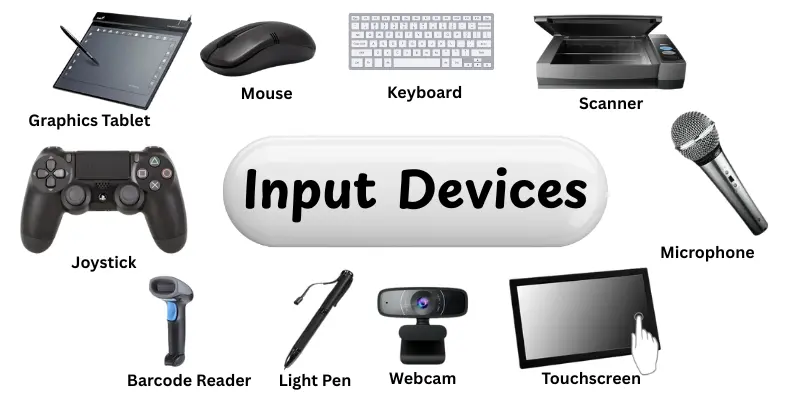
There are many types of input devices that help people to communicate data to a computer. Each one has a specific role and allows communication with the system. Here’s just a few of the most popular input devices:
- Keyboard
- Mouse
- Scanner
- Microphone
- Joystick
- Touchscreen
- Webcam
- Light Pen
- Barcode Reader
- Graphics Tablet
Keyboard
To communicate with our computers, we most commonly use a keyboard. It helps us to quickly and easily input words, numbers, and commands. If you’re writing a school assignment, talking online, or gaming, the keyboard is always there, working quietly but effectively.
Common Uses:
- Writing letters, emails, and documents with ease
- Searching for information or typing web addresses
- Playing games that need control keys or shortcuts
- Entering data in spreadsheets or software programs
- Using keyboard shortcuts to save time and boost productivity
Mouse
A mouse is one of the most easy to use input devices. It allows you to move the cursor, click, drag, and select objects on your screen. With a simple action of your hand, you can control anything on your computer quickly and comfortably.
Common Uses:
- Selecting and opening files or folders quickly
- Dragging and dropping items while organizing or editing
- Scrolling through web pages or documents smoothly
- Playing games that need fast movements and aiming
- Drawing or designing with precision in creative software
Scanner
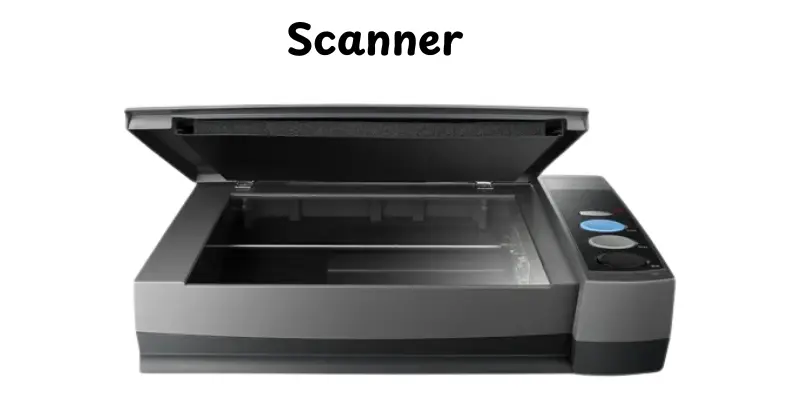
A scanner is a device that helps you to convert physical documents or photographs into digital form. It reads the picture or text and saves it to the computer for easy sharing or editing. Scanners are great tools for keeping and organizing old memories, documents, and artwork.
Common Uses:
- Digitizing old photos or printed pictures
- Scanning documents for online submission or backup
- Copying artwork or designs for editing on a computer
- Storing receipts and bills to reduce paper clutter
- Sharing handwritten notes or forms through email easily
Microphone
A microphone is a device that gathers and converts sound into digital signals. It enables you to record your voice, talk online, and add audio to videos. A microphone makes your voice loud and simple to hear, if you’re chatting, singing, or making podcasts.
Common Uses:
- Talking during online meetings or video calls
- Recording songs, podcasts, or voiceovers
- Communicating while gaming with friends
- Using voice commands for virtual assistants
- Capturing live sounds for videos or films
Joystick
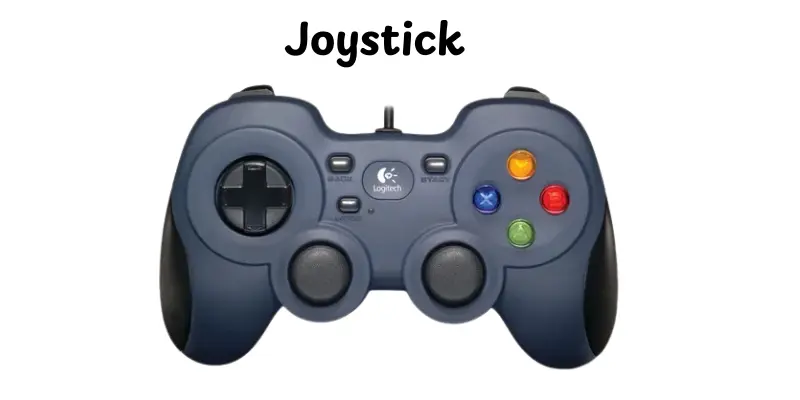
A joystick is a portable input device that controls movement in games or simulations. It has a stick that moves in many directions, providing you complete control over your activities. Many people love to use it for gaming, flying simulators, and even machines because it feels more natural and enjoyable to use.
Common Uses:
- Controlling aircraft in flight simulators
- Playing racing or adventure video games
- Operating cranes or robotic arms in industries
- Navigating 3D environments in virtual reality
- Assisting people with physical disabilities in computer control
Touchscreen
A touchscreen lets you manage your device by simply touching or sliding your fingers across the screen. It replaces the need for a keyboard or mouse, making devices easier and more enjoyable to use. Touchscreens become popular in everyday life, from cellphones to ATMs, due to their speed and convenience.
Common Uses:
- Using smartphones and tablets for daily tasks
- Operating ATMs and ticket machines
- Navigating menus on kiosks and restaurant screens
- Drawing or designing with touch-based apps
- Controlling smart home devices and car displays
Webcam
A webcam is a small camera that connects to your computer or laptop and records live video. It helps you to see and communicate with others in real time, no matter where they are. Webcams, whether used for professional meetings, online classes, or chatting with friends, make communication more personal and face-to-face.
Common Uses:
- Joining video calls and virtual meetings
- Streaming live content or gaming sessions
- Recording tutorials or online lessons
- Talking to friends and family through video chat
- Monitoring spaces through security or baby cameras
Light Pen
A light pen is a special pointing device that allows you to draw or select objects straight from a computer screen. It looks like an ordinary pen, but it detects movement and location using light sensors. Many artists and designers use it because it feels natural, like using a real pen on paper.
Common Uses:
- Drawing or sketching directly on digital screens
- Selecting or highlighting objects in graphic design software
- Creating detailed artwork or animations
- Editing photos or blueprints with precision
- Teaching or demonstrating concepts on interactive displays
Barcode Reader
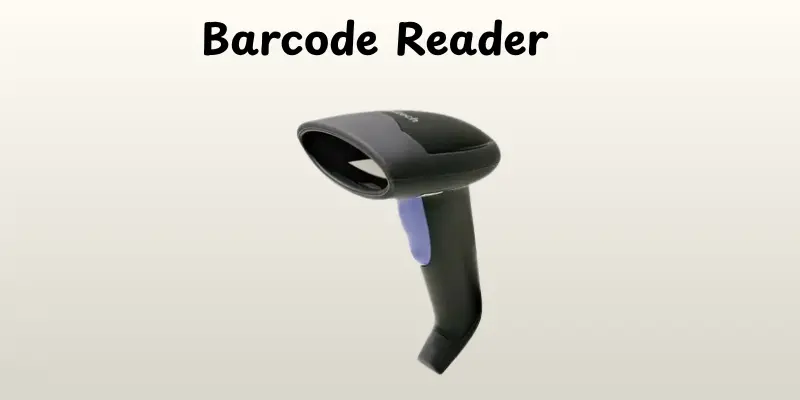
A barcode reader is a useful device that scans barcodes placed on objects to rapidly collect information. It works by capturing the code with a laser beam and transmitting it to a computer or system. They may be found everywhere, from supermarkets to hospitals, and help to speed up and improve accuracy.
Common Uses:
- Scanning product prices at retail checkout counters
- Tracking items in warehouses and inventory systems
- Managing patient records and medicines in hospitals
- Checking tickets at events or airports
- Recording attendance or assets in offices and schools
Graphics Tablet
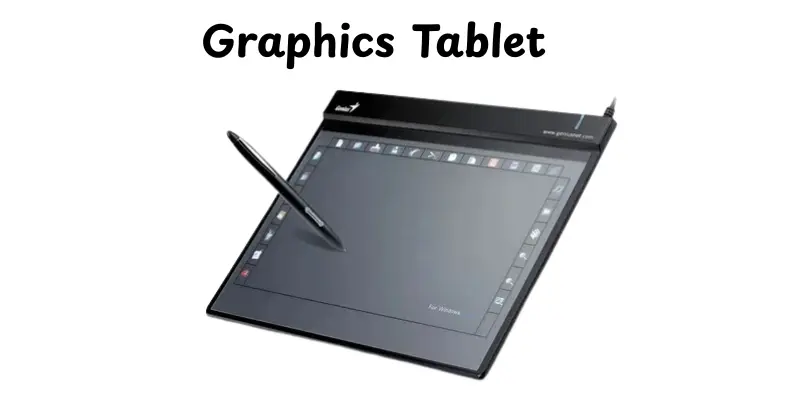
A graphics tablet is a smart input device that lets you draw or write directly on a digital surface with a stylus. It feels like drawing on paper, but with digital accuracy and freedom. Artists, designers, and illustrators like it for its natural hand control and accuracy.
Common Uses:
- Creating digital art, sketches, and illustrations
- Editing photos and retouching images with fine detail
- Designing graphics, logos, and animations
- Taking handwritten notes or signing documents
- Teaching or demonstrating online using handwriting tools
Advantages and Disadvantages of Input Devices
Input devices make it easy for users to interact with computers by entering data, commands, and instructions. Like all technology, they come with both benefits and a few drawbacks.
| Advantages |
|---|
|
| Disadvantages |
|---|
|
Modern trends and future of input devices
Technology is rapidly changing, and input devices are getting smarter, faster, and more simple to use. Today’s trend is to make computer interaction feel effortless and humanlike. From voice assistants to gesture control, new methods to ‘talk’ to machines are shaping the future.
Modern Trends:
- Touchless control: Devices now use gestures, eye movement, or body motion to give commands.
- Voice recognition: Virtual assistants like Alexa and Siri respond to spoken commands.
- Wearable inputs: Smartwatches and AR glasses capture motion and touch in real-time.
- Haptic feedback: Input tools now provide vibration or touch sensations for a realistic feel.
- AI-based prediction: Keyboards and systems can guess what you’ll type or do next.
Future Possibilities:
- Brain-computer interfaces: People may control devices directly through brain signals.
- Fully immersive inputs: VR gloves and 3D scanners could let users “touch” digital objects.
- Biometric expansion: More input tools will use fingerprints, voice, and face patterns for security.
- Seamless connectivity: All input devices may sync smoothly across devices and platforms.
- Eco-friendly designs: Sustainable materials and low-power sensors will shape the next generation of inputs.
How to choose the right input device
Choosing the right input device depends on what you need it for. Different devices suit different tasks, and picking the right one can make your work faster, easier, and more comfortable. Here are some simple tips to help you decide:
- Consider your task: Use a keyboard or mouse for typing and office work, a stylus or graphics tablet for drawing, and a joystick or game controller for gaming.
- Think about comfort: Make sure the device feels good in your hands or fingers, especially if you’ll use it for long periods.
- Check compatibility: Ensure it works with your computer or operating system before buying.
- Look at features: Some devices have extra buttons, touch sensitivity, or wireless options—choose what fits your needs.
- Budget wisely: Don’t overspend on features you won’t use; balance cost and functionality.
- Try it if possible: Testing the device in-store or reading reviews can help you feel confident in your choice.
Conclusion
So, in this article, we explored input devices in detail. I’d recommend looking into how these tools can help you with your daily computer tasks, such as typing, gaming, and writing. Knowing the right device can help you work more quickly and easily. Keep studying, guys, because knowing technology always gives you a benefit!
FAQs
An input device is any tool you use to send information to a computer. It could be typing on a keyboard, clicking a mouse, or speaking into a microphone. The computer then takes that information and does something with it.
Examples include keyboards, mice, touchscreens, microphones, and scanners. Each of these devices lets you interact with the computer in a different way. They turn your actions or data into signals the computer can understand.
An input device sends data to the computer (like you typing a letter). An output device sends data from the computer to you (like a monitor showing a picture). They work together so you can give commands and get results.
Yes, some devices can do both jobs. For example, a touchscreen displays something (output) and also lets you tap or swipe (input). These dual-function devices make interaction easier and more natural.
Input devices let people with different abilities use computers more easily. For example, voice controls help those who can’t use their hands and eye-tracking helps people with mobility challenges. Good input tools make technology more inclusive.
It’s called an input device because it helps you put information into the computer. These devices send signals or data for the system to process. Without them, you couldn’t control or communicate with your computer.


- Be Respectful
- Stay Relevant
- Stay Positive
- True Feedback
- Encourage Discussion
- Avoid Spamming
- No Fake News
- Don't Copy-Paste
- No Personal Attacks
- Be Respectful
- Stay Relevant
- Stay Positive
- True Feedback
- Encourage Discussion
- Avoid Spamming
- No Fake News
- Don't Copy-Paste
- No Personal Attacks
