What Is Gamepad? Easy Guide for Beginners
Published: 5 Feb 2026
Modern video games depend heavily on dedicated control hardware. Most console titles are designed around handheld controllers and support standardized game input devices across systems . Today, computers and consoles both recognize controller signals through USB or Bluetooth standards .
Many players pick up a controller and still feel unsure about how it really helps during play. Some games feel smooth while others feel hard, and the device makes the difference. In this guide, you will learn what is gamepad and why gamers choose a gaming controller instead of keys. We will keep things simple so you can understand it quickly.
You will also see where a game controller works best and how a handheld controller improves comfort during long sessions. We will compare it with a controller device for PC and show when a gamepad for PC gaming feels better than keyboard controls.
What Is Gamepad?
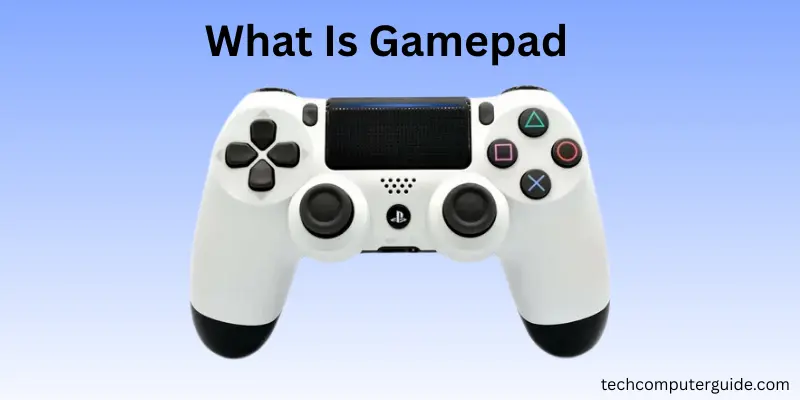
A gamepad is a video game controller and an input device in computer systems. It sends user input signals through a hardware interface so the game reacts instantly. When you press action buttons or move analog sticks, your character moves, jumps, or turns in real time.
This small device is popular because it improves human computer interaction. Many players prefer a controller for games instead of typing keys. Racing and sports titles especially benefit from a ergonomic game controller that allows accurate character movement and smooth camera control.
History of Gamepad
Game controllers didn’t appear overnight. They changed step by step as games became faster and more detailed. Each decade added new control ideas that shaped modern play.
Timeline of Gamepad Development
- 1970s — Early controllers: Atari systems used a simple stick and one button. Basic movement only.
- 1980s — Direction control improved: Nintendo introduced the D-pad. Players could move smoothly in four directions.
- 1990s — More buttons and feedback: Dual sticks and vibration appeared. Games started feeling more realistic.
- 2000s — Wireless freedom: Controllers connected without cables using radio signals. Motion control arrived with Wii.
- 2010s — Precision era: Touch surfaces, better triggers, and improved comfort design became standard.
- Today — Smart controllers: Adaptive triggers, advanced vibration, and cross-platform support allow deeper interaction.
How does a Gamepad Works
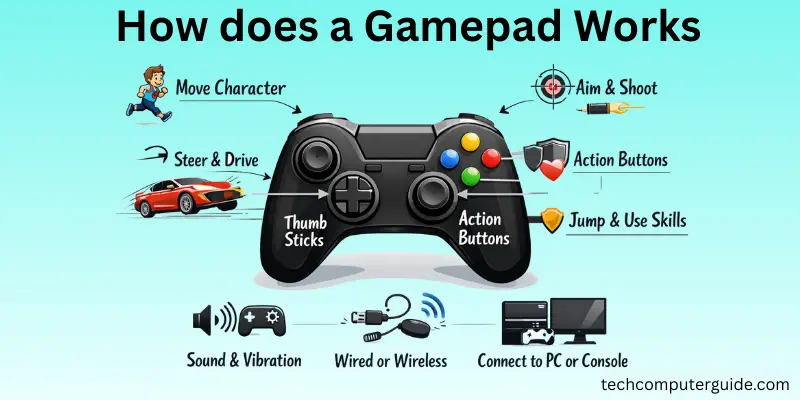
A gaming input device works by converting finger movement into signals. The internal circuit board reads inputs and sends them through USB connection or wireless connectivity. A wired gaming controller sends signals instantly while a wireless gaming controller uses Bluetooth pairing.
Inside the system, software interprets signals for aiming and shooting or racing acceleration. Modern controllers even include vibration motors and haptic feedback so impacts feel physical. That is why players notice faster reaction compared with gamepad vs keyboard setups.
Parts of a Gamepad Explained
A modern controller includes many physical components. The triggers and bumpers handle speed control. The sticks manage direction. The battery powers the system and allows portable play.
| Part | Purpose |
| analog sticks | movement and aim |
| action buttons | jump, interact |
| rechargeable battery | wireless power |
| vibration motors | physical feedback |
| circuit board | signal processing |
These elements work together to form a complete gaming controller used across systems.
Types of Gamepads
Not every controller feels the same in your hands. Different designs exist for different devices and play styles. Picking the right type makes games easier and more fun.
- Wired Gamepad – Connects with a cable and gives steady performance without battery worries.
- Wireless Gamepad – Uses Bluetooth or a receiver so you can play from a distance.
- PC Gamepad – Made mainly for computers and works well with many PC games.
- Console Gamepad – Built for systems like PlayStation or Xbox with matching button layouts.
- Mobile Gamepad – Attaches to a phone or connects wirelessly for portable gaming.
- Motion-Control Gamepad – Detects hand movement to control actions in motion-based games.
- Pro or Elite Gamepad – Advanced model with extra buttons and adjustable settings for serious players.
Gamepad vs Joystick (Key Differences)
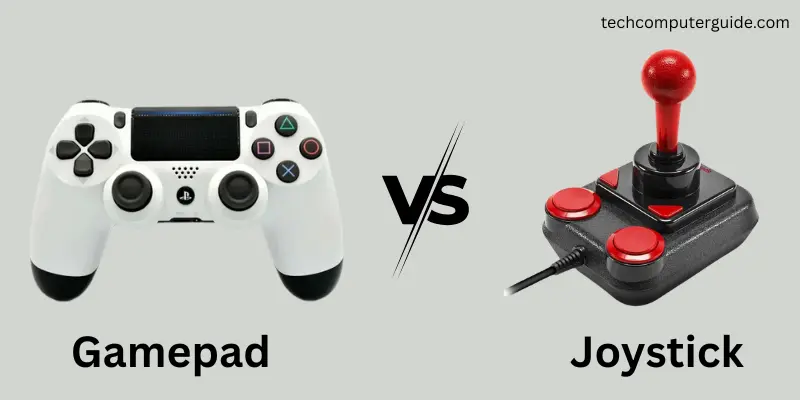
The debate of gamepad vs joystick depends on play style. A joystick excels in flight simulators while a pad works better in action titles. Compared with gamepad vs joystick a controller feels relaxed for long sessions.
| Feature | Gamepad | Joystick |
| Control | thumbs | full hand |
| Comfort | high | medium |
| Best games | racing, sports | flight sim |
Many beginners prefer controller vs keyboard gaming because it reduces finger strain.
Functions and Uses of a Gamepad
A gamepad is useful beyond just casual play. Many systems rely on it because hand controls feel faster and more natural than typing keys. From home entertainment to training software, it supports many everyday activities.
- Video gaming – Controls characters, vehicles, and actions in different genres.
- PC gaming – Helps in racing, sports, and fighting games where smooth movement matters.
- Mobile gaming – Connects to phones for better control than touch screens.
- Virtual reality – Navigates objects and actions inside immersive worlds.
- Simulation training – Used in driving and flight practice programs.
- Educational games – Makes learning interactive for children.
- Multiplayer sessions – Lets multiple players join the same system easily.
- Accessibility support – Helps users who find keyboard and mouse difficult to use.
Compatibility: What Devices Support Gamepads
Modern systems support nearly every video game controller. Windows detects a controller device for PC automatically. Consoles pair instantly. Even TVs support cloud gaming services.
| Platform | Support |
| PC | plug and play |
| Console | native support |
| Mobile | Bluetooth pairing |
| Smart TV | streaming games |
This wide compatibility makes a gaming input device useful across ecosystems.
How to Choose the Right Gamepad (Buying Guide)
When thinking about how to choose a gamepad, comfort matters most. A comfortable gaming controller prevents wrist pain during long sessions. Also check build quality for a durable game controller.
Battery life is key. A long lasting rechargeable controller battery avoids interruptions. Many beginners search the best gamepad for beginners or best controller for PC gaming that balances price and durability.
Advantages and Disadvantages of Gamepads
In this section, we will look at the pros and cons. A gamepad makes play easier, but it also has a few limits. Knowing both sides helps you decide if it suits you.
| Advantages of Gamepad |
|---|
|
| Disadvantages of Gamepad |
|---|
|
Care, Maintenance Tips for Gamepad
A little care keeps your controller working smoothly for a long time. Simple habits can prevent stick problems and button damage.
- Wipe the surface weekly with a dry cloth
- Keep dust away from thumb sticks and buttons
- Do not press buttons too hard
- Avoid eating or drinking while playing
- Store it in a clean, dry place
- Charge the battery before it fully dies
- Unplug the cable safely after use
- Update firmware when available
Future of Gamepads in Gaming
Controllers keep changing as games become more realistic and connected. New features aim to make actions feel closer to real life.
- Stronger vibration that matches in-game events
- Triggers that change resistance during actions
- Longer battery life with faster charging
- Better wireless connection with less delay
- Voice commands for quick control
- Motion sensing for physical interaction
- Cloud gaming support across many devices
Conclusion
We explored what is gamepad, how it works, its parts, types, uses, and even its future. Now you know why many players prefer it for smooth control and comfort during play.
My suggestion is simple, folks — if you play action, racing, or sports games often, a good controller makes a big difference. It feels easier on your hands and helps you react faster.
Keep learning and stay tuned for more easy guides!
FAQs about “what is Gamepad“
Here’re few common asked questions about what is gamepad:
A gamepad is used to control actions in video games. You move characters, drive cars, and aim weapons with it. It feels natural because you use your thumbs instead of many keys. Many people also use it for racing and sports games.
A controller is a general name for any gaming control device. A gamepad is a specific type of controller you hold with both hands. Joysticks and steering wheels are also controllers but not gamepads. So every gamepad is a controller, but not every controller is a gamepad.
Popular examples include PlayStation and Xbox controllers. Many PC players also use them on computers. Some brands make cheaper third-party versions too. All of them work in a similar way.
People often call it a controller. Some also say gaming controller or handheld controller. All these names mean the same device. The term depends on region and habit.
It depends on the game type. Gamepads feel better for racing, sports, and fighting games. Keyboard and mouse work better for strategy or typing-heavy games. Most players keep both and switch when needed.
Plug it in with a USB cable and the computer usually detects it automatically. For wireless models, turn on Bluetooth and pair the device. Install drivers if the system asks. After that, open a game and test the buttons.




- Be Respectful
- Stay Relevant
- Stay Positive
- True Feedback
- Encourage Discussion
- Avoid Spamming
- No Fake News
- Don't Copy-Paste
- No Personal Attacks
- Be Respectful
- Stay Relevant
- Stay Positive
- True Feedback
- Encourage Discussion
- Avoid Spamming
- No Fake News
- Don't Copy-Paste
- No Personal Attacks
