Types of Monitor Connectors: Features, Examples, and Tips
Published: 20 Nov 2025
Ever tried to plug a new monitor into your laptop and realized the cable doesn’t work? You stand there with multiple cables, wondering which one gives the best image or even works at all. Many people face this issue when setting up a computer, gaming screen or work-from-home desk. Knowing the many types of monitor connectors helps you to select the best cable, achieve a clearer view and avoid spending money on converters you don’t need. In this article, we’ll look over each type of monitor connectors in simple terms so you can connect your devices with confidence.
What Is Monitor Connector?
A monitor connector is a port that links a computer or device to a display.It transfers video signals, audio, and power from one device to another. Different monitors use different types of connectors and standards. Some connectors work better with high-resolution screens, while others are designed for older devices. People use these connectors every day to connect laptops, game consoles and desktop PCs to monitors. Simply said, a monitor connection allows your screen to display the image from your device.
How a Monitor Connector Works
A monitor connector is what links your device to your screen, helping you see videos, games or work clearly. Each connector carries signals in a slightly different way, but all make your display work properly. Knowing how monitors connectors work makes it easier to pick the right cable.
- The connector plugs into your computer or device and the monitor.
- It carries video signals and in some cases, audio and power.
- Digital connectors (like HDMI or DisplayPort) send clear, high-quality signals.
- Analog connectors (like VGA) send signals as waves, which can lose quality over distance.
- Some connectors, like USB-C or Thunderbolt, can also charge your device while sending video.
- Once connected, the monitor reads the signal and displays the picture on the screen.
Types of Monitor Connectors
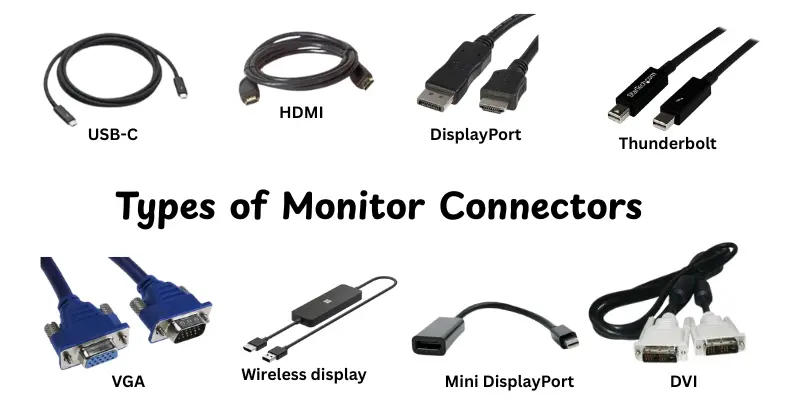
Different monitors use different ports and each port affects picture quality, speed and device support.Here are some of the main types of monitor connectors that help you connect your devices easily:
- HDMI
- DisplayPort
- USB-C (DisplayPort Alt Mode)
- Thunderbolt
- DVI
- VGA
- Mini DisplayPort
- SDI (for broadcast and professional screens)
- Wireless display options like Miracast or AirPlay
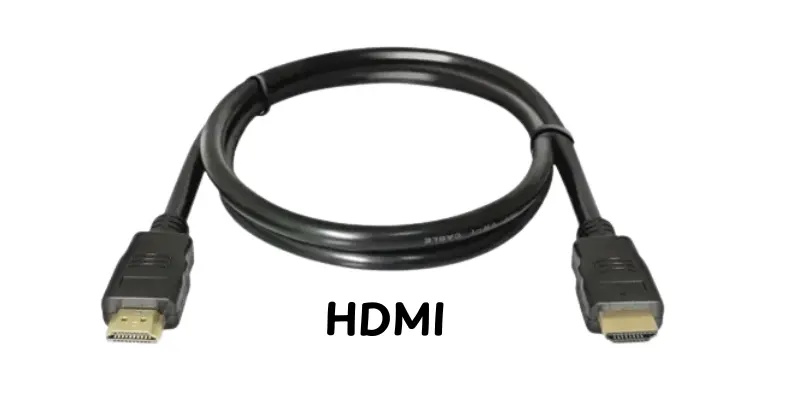
HDMI
HDMI (High-Definition Multimedia Interface) is a digital connector that carries both video and audio signals in one cable. It is widely used to connect computers, TVs and gaming consoles to monitors or screens. HDMI ensures high-quality picture and sound without needing multiple cables.
Features:
- Supports high-definition resolutions, including 4K and 8K
- Transmits audio and video through a single cable
- Compatible with most modern TVs, monitors and projectors
- Supports high refresh rates for smooth gaming and video playback
- Some versions support HDR (High Dynamic Range) for better color and contrast
Examples:
- Connecting a gaming console like PlayStation 5 or Xbox Series X to a 4K TV
- Hooking up a laptop to an external monitor for work or presentations
- Using a Blu-ray player with a home theater system for high-quality video and audio
DisplayPort
DisplayPort is a digital connector designed to transmit high-quality video and audio from a computer to a monitor. It supports high resolutions, fast refresh rates and multiple monitor connector using a single cable. DisplayPort is common in gaming PCs, professional workstations and modern monitors.
Features:
- Supports high-resolution displays up to 8K
- Allows high refresh rates, ideal for gaming and animation
- Can connect multiple monitors through one cable (daisy-chaining)
- Carries both video and audio signals
- Compatible with adapters for HDMI, DVI and VGA
Examples:
- Connecting a gaming PC to a 144Hz or 240Hz monitor
- Setting up a professional designer’s dual-monitor workstation
- Using a laptop with DisplayPort to connect to an external 4K monitor
USB-C (DisplayPort Alt Mode)
USB-C with DisplayPort Alt Mode is a modern connector that can carry video, audio and power through a single cable. It allows laptops, tablets and monitors to connect easily without multiple wires.This type of connector is growing popular because it simplifies setups and supports high-resolution displays.
Features:
- Transmits video and audio along with power in one cable
- Supports high-resolution monitors, including 4K and 8K
- Compatible with modern laptops, tablets and docking stations
- Reversible connector makes plugging in easier
- Can connect to external monitors using adapters if needed
Examples:
- Connecting a MacBook or Windows laptop to a 4K external monitor
- Using a USB-C docking station to power a laptop and connect multiple screens
- Hooking a tablet like iPad Pro to a portable monitor for work or presentations
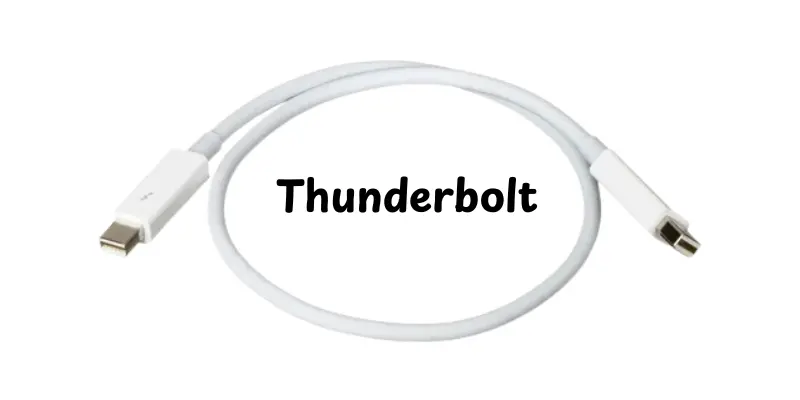
Thunderbolt
Thunderbolt is a high-speed connector that carries video, audio, data and power through a single cable. It is designed for high-performance devices like modern laptops, professional monitors and external storage.Thunderbolt enables ultra-fast data transfer and high-resolution displays, making it perfect for advanced designs.
Features:
- Extremely high data transfer speeds (up to 40 Gbps for Thunderbolt 3 & 4)
- Supports 4K and 8K monitors with high refresh rates
- Can daisy-chain multiple devices on a single port
- Carries power to charge laptops and devices
- Compatible with USB-C ports for wider device support
Examples:
- Connecting a MacBook Pro to a 6K Apple Pro Display XDR
- Hooking up external SSD drives and monitors simultaneously for video editing
- Using a docking station to power a laptop while connecting multiple high-resolution monitors
DVI
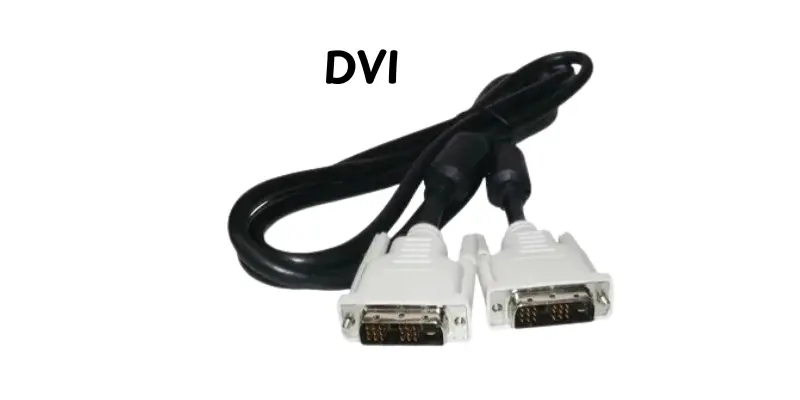
DVI (Digital Visual Interface) is a connector that transmits digital video signals from a computer to a monitor. It was widely used before HDMI became common and is still found on many older monitors and graphics cards. DVI provides clear video quality but does not carry audio signals.
Features:
- Supports digital video and some analog connections (DVI-I)
- Can handle high resolutions up to 2560×1600 (dual-link)
- Offers stable and reliable video quality for computers
- Commonly used in older PCs, monitors, and projectors
- Requires a separate cable for audio
Examples:
- Connecting an older desktop PC to a standard monitor
- Hooking up a graphics card in a workstation for CAD or office work
- Using a projector in a classroom or conference room with DVI input
VGA
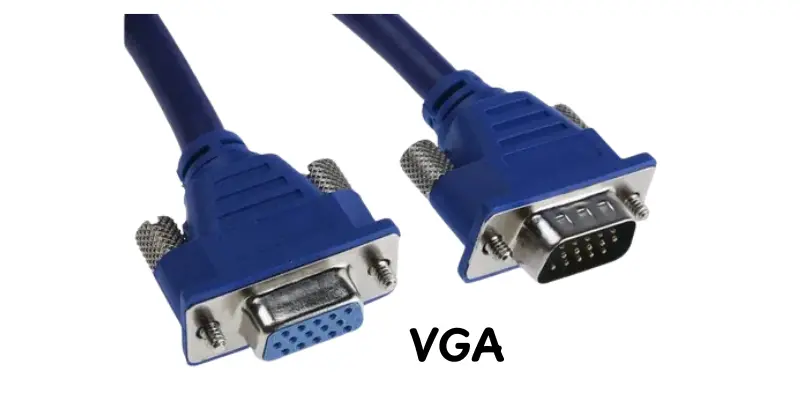
VGA (Video Graphics Array) is an analog connector that sends video signals from a computer to a monitor or projector. It was the standard for many years and is still found on older devices. VGA is simple to use but does not support audio or very high resolutions compared to modern digital connectors.
Features:
- Supports analog video signals only
- Maximum resolution typically up to 1920×1200
- Easy to connect with a simple 15-pin connector
- Widely available on older computers, monitors and projectors
- Does not transmit audio, so a separate cable is needed
Examples:
- Connecting an old desktop PC to a legacy monitor
- Using a classroom projector with VGA input
- Hooking up older laptops to external displays for presentations
Mini DisplayPort
Mini DisplayPort is a smaller version of the standard DisplayPort connector that can transmit high-quality video and audio signals. It is commonly seen on older laptop computers, particularly Apple systems and some professional monitors. Despite its small size, it supports high-resolution monitors and can connect to other ports using converters.
Features:
- Supports high-definition video and audio signals
- Can handle resolutions up to 4K
- Compact and space-saving design for laptops and small devices
- Compatible with adapters for HDMI, DVI, and VGA
- Supports daisy-chaining multiple monitors in some setups
Examples:
- Connecting a MacBook Air or MacBook Pro to an external 4K monitor
- Using adapters to connect a Mini DisplayPort laptop to a projector in a meeting room
- Hooking up a professional graphics workstation to dual-monitor setups for design work
SDI (for broadcast and professional screens)
SDI (Serial Digital Interface) is a professional video connector that sends uncompressed digital video data across long distances. It’s commonly used in radio, television studios and high-end video creation. SDI provides constant high-quality video with no signal loss, even over lengthy cords.
Features:
- Transmits uncompressed digital video for perfect image quality
- Supports high-definition (HD), 4K and even 8K video
- Reliable over long distances without losing signal
- Often used with BNC connectors for secure connections
- Compatible with professional broadcast and production equipment
Examples:
- Connecting cameras to video switchers in a TV studio
- Running video signals from a broadcast truck to a control room
- Linking high-end video monitors for film or live production environments
Wireless display options like Miracast or AirPlay
Wireless display options like Miracast and AirPlay allow you to send video and audio from a device to a monitor or TV without using cables. They use Wi-Fi to transmit the signal, making it easy to connect laptops, phones or tablets to screens. These choices are useful for giving presentations, streaming content and quickly sharing data.
Features:
- Connect devices without any physical cables
- Supports video and audio transmission over Wi-Fi
- Easy to set up on compatible devices and smart TVs
- Works with laptops, smartphones, tablets and some monitors
- Ideal for quick screen sharing, presentations and media streaming
Examples:
- Casting a smartphone screen to a smart TV for watching videos
- Using Miracast to share a laptop presentation in a meeting room
- Streaming photos and movies from an iPad to an Apple TV via AirPlay
How to Choose the Right Monitor Connector
Choosing the right monitor connector can significantly improve image quality and ease of use. First, check which ports your screen and device have. Next, choose if you want high resolution, fast refresh rates, or audio capacity. For gamers and designers, DisplayPort is usually the best option. If you want simplicity and connectivity with TVs and consoles, HDMI is perfect. For modern laptops or clean setups, USB-C or Thunderbolt can handle video, audio, and power with a single cable. Always choose a monitor connector that is appropriate for your device’s capabilities and your daily use.
Future Trends
Monitor connectors continue to change as technology advances. USB-C and Thunderbolt become more common, combining video, audio and power in a single cable for easier setup. DisplayPort 2.0 and future versions offer significantly faster speeds, greater resolutions and capability for multiple displays. Wireless display solutions are also growing, making it easier to broadcast video without a wire. Staying on top of these trends helps you to select monitor connectors that will perform well not only today, but also for future devices.
Conclusion
In this article, we’ve covered the main types of monitor connectors, like HDMI and DisplayPort, as well as USB-C, Thunderbolt, DVI, VGA and wireless choices. Knowing these connectors helps you to select the right cable, obtain the highest picture quality and prevent needless adapters or connection issues. Personally, I suggest paying attention to present monitor connectors like as HDMI, DisplayPort and USB-C, because they simplify setup and future-proof your devices. So, keep researching and learning about your technology to get the most out of your screens.
FAQs
It depends on what you need. HDMI works great for TVs and general monitors, while DisplayPort is better for PCs, gaming and high refresh rates. Both give good picture quality, but DisplayPort usually supports higher resolutions and faster refresh rates.
Yes, USB-C with DisplayPort Alt Mode can carry video, audio and power through one cable. It works well with modern laptops and monitors. For TVs or older monitors, you might still need HDMI.
Yes, not all cables can handle 4K at high refresh rates. Look for DisplayPort 1.4 or HDMI 2.1 cables. Using the right cable ensures smooth gaming or video playback.
HDMI 2.1 is best for PS5 and Xbox Series X. It supports 4K resolution at 120Hz and works with most modern TVs. DisplayPort is usually not supported on consoles.
Yes, HDMI can work, but you may be limited by refresh rate or resolution depending on the version. DisplayPort often gives better performance for high-end gaming PCs.
Yes, standard HDMI or old cables might not support it. Use HDMI 2.1 or DisplayPort 1.4+ cables for smooth 4K at 120Hz.
Yes, but you need an active converter box because VGA is analog and HDMI is digital. Simple cables alone won’t work.
It depends on your setup. USB-C can carry video, audio and power in one cable, which is great for laptops and clean desks. HDMI is simpler for TVs or general monitors.





- Be Respectful
- Stay Relevant
- Stay Positive
- True Feedback
- Encourage Discussion
- Avoid Spamming
- No Fake News
- Don't Copy-Paste
- No Personal Attacks
- Be Respectful
- Stay Relevant
- Stay Positive
- True Feedback
- Encourage Discussion
- Avoid Spamming
- No Fake News
- Don't Copy-Paste
- No Personal Attacks
