What Is Computer Hardware? Know the Basics Before You Buy a PC
Published: 5 Nov 2025
Have you ever looked inside a computer and felt lost among all the parts? You are not alone; many people see cables, chips, and boards but don’t know what they do. Do not worry, this guide will make everything clear. We’ll explore how each piece of computer hardware is working, why it matters, and how it all works together to keep your device working properly. By the end, you’ll have a good understanding of what’s within your computer and how it benefits you on a daily basis.
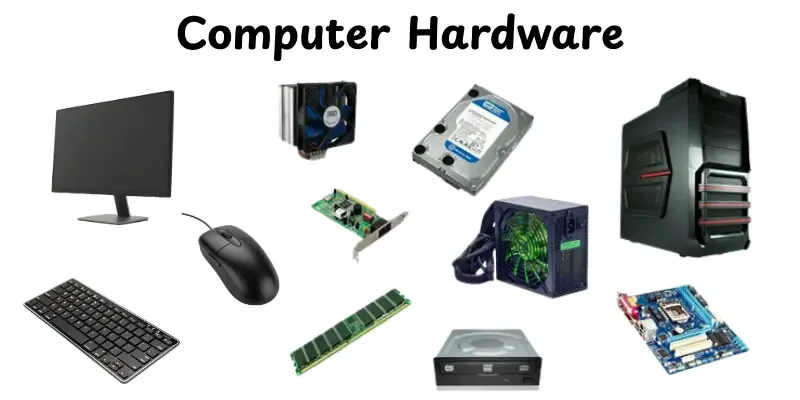
What is computer hardware?
Computer hardware refers to all of the physical parts that make up a computer system. The monitor, keyboard, and other important parts of the computer body are examples of visible and touchable goods. It includes the brain of the computer called the CPU, the memory that stores data, and the devices that show results or take input. Hardware works together to process information and carry out tasks.It is required for the software to work. In simple words, hardware is what powers a computer.
How Computer Hardware Works
Have you ever wondered what happens inside your computer when you press a key or open a file? Every part of the system works together like a small team, each doing its job to make things happen. Here’s a simple look at how computer hardware works step by step:
- Input stage: You start by giving a command through an input device like a keyboard, mouse, or microphone.
- Processing stage: The CPU (central processing unit) reads your command, thinks about it, and decides what to do next.
- Memory use: The RAM (temporary memory) holds information while the CPU works on it, making things fast and smooth.
- Storage stage: The finished data or files are saved to a hard drive or SSD so you can use them later.
- Output stage: The results appear on your screen, come out of a printer, or play through your speakers.
- Communication stage: If you’re online, network hardware like routers and Wi-Fi cards send and receive data between your computer and the internet.
Key Components of Computer Hardware
Every computer is made up of different parts that work together to perform tasks. These components are divided into two main types based on where they are located.
- Internal Hardware
- External Hardware
Internal Hardware
Internal hardware includes all the parts found inside your computer’s case. These components work together to process data, store information, and keep your system running smoothly.
- CPU (Central Processing Unit)
- Motherboard
- RAM (Random Access Memory)
- Storage (HDD vs SSD)
- Graphics Card (GPU)
- Power Supply Unit (PSU)
CPU (Central Processing Unit)
The CPU is sometimes referred to as the computer’s brain. It processes all instructions and data from both software and hardware. A quicker CPU allows your computer to do tasks faster and manage multiple tasks at once.
Motherboard
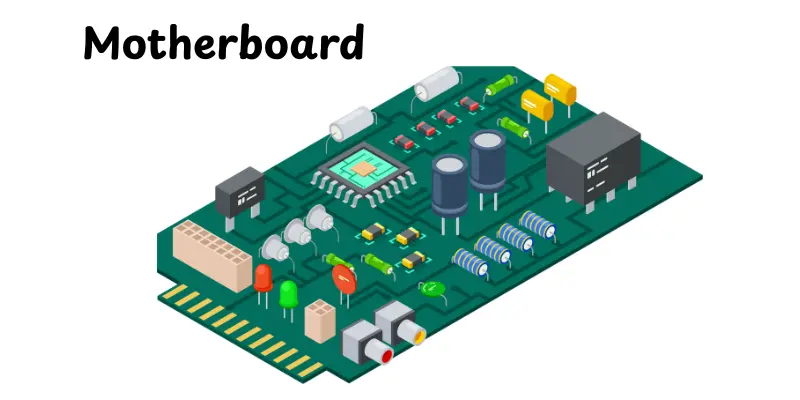
The motherboard is the primary circuit board of your computer. It connects all of the other components, like the CPU, RAM, and storage, allowing them to work together. Consider it the backbone of your computer, helping all components to interact easily.
RAM (Random Access Memory)
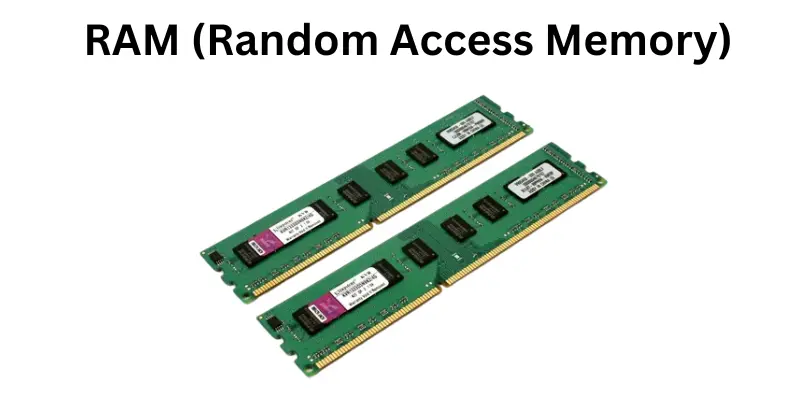
RAM represents your computer’s short-term memory. It temporarily stores data that your system requires right away. The more RAM you have, the more things your computer can do at once, like browsing the web while editing images or playing games.
Storage (HDD vs SSD)
Storage keeps your data, files, and programs safe.
- HDD (Hard Disk Drive) uses spinning disks to read and write data. It’s cheaper but slower.
- SSD (Solid State Drive) uses flash memory and works much faster. It helps your computer start up quickly and load programs faster.
Graphics Card (GPU)
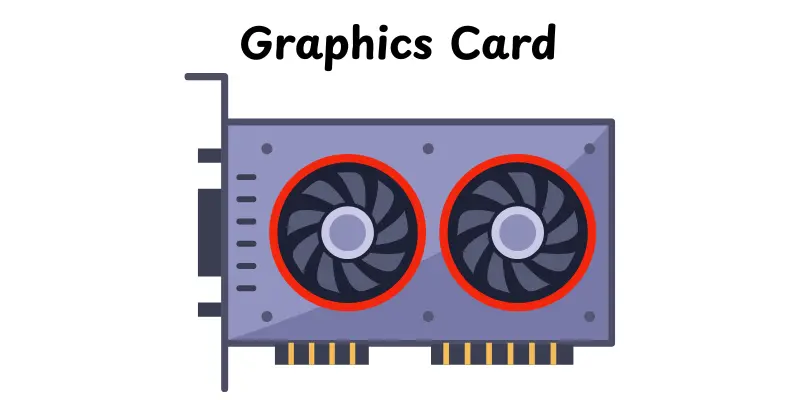
The GPU handles pictures, movies, and animations. It’s important for gaming, video editing, and design projects. A powerful GPU provides smoother images and faster performance, particularly for 3D graphics and high-resolution screens.
Power Supply Unit (PSU)
The power supply unit (PSU) provides electricity to all sections of your computer. It turns the electricity from your wall outlet into usable power for the system. A good power supply unit (PSU) provides accurate operation and protects your components from power damage.
External Hardware
External hardware refers to the parts that connect to your computer from the outside. These devices help you input data, display results, store files, and connect to other systems.
- Input Devices
- Output Devices
- Storage Devices
- Networking Devices
1. Input Devices
These parts help you give instructions to the computer. Common examples are the keyboard, mouse, microphone, and scanner. When you type or click, these devices send signals for the computer to understand and act on.
2. Output Devices
These parts show the results of what the computer does. Monitors, printers, and speakers are good examples. They turn the computer’s work into something you can see, hear, or read.
3. Storage Devices
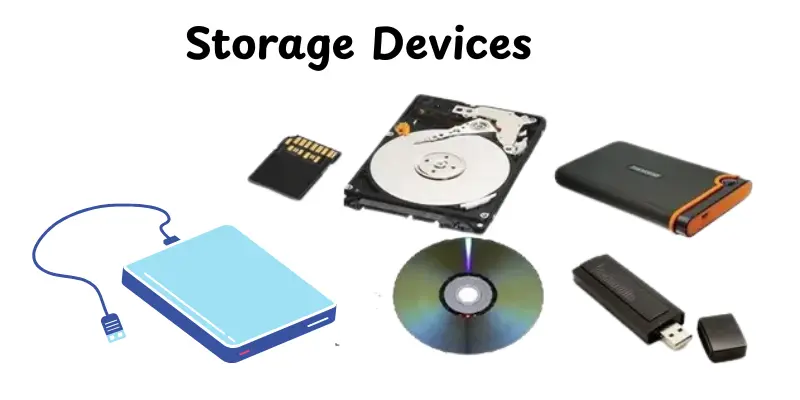
These are the parts that hold data and files. Hard drives, solid-state drives (SSDs), and USB flash drives store your programs, documents, and photos. Some storage is temporary, like RAM, which clears when you turn off the computer.
4. Networking Devices
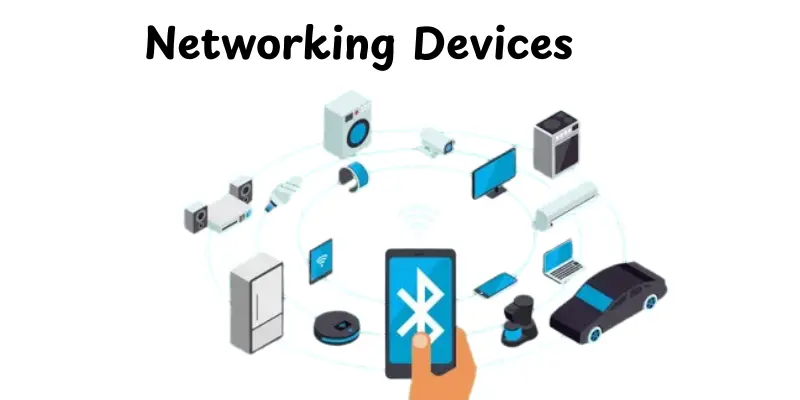
Networking devices like routers and network cards help computers connect and share data. Peripherals such as webcams, external drives, and game controllers expand what your computer can do.
Uses of computer Hardware
Computer hardware is used in almost every part of modern life. From homes to hospitals, every field relies on it to perform tasks quickly and accurately. Here are some common applications of computer hardware in daily use:
- Education: Helps students learn online, create projects, and access study materials.
- Business: Supports accounting, communication, and data management for smooth operations.
- Healthcare: Runs machines that monitor patients and store medical records safely.
- Entertainment: Powers gaming, music, video editing, and streaming platforms.
- Engineering and Design: Handles heavy software for 3D modeling, simulations, and blueprints.
- Banking: Manages transactions, ATMs, and customer databases securely.
- Communication: Enables video calls, emails, and instant messaging across the world.
- Research and Science: Processes complex data for experiments and space studies.
How to identify hardware components on your PC
It’s easy to see what parts your computer has without opening it. Checking your hardware helps you understand your system’s power, storage, and performance. Here’s how you can find out what’s inside your PC step by step:
- For Windows users:Open the Start menu, enter System Information, and then click Enter. You’ll see information on your processor, memory, and storage. You can also get an introduction by right-clicking This PC and selecting Properties.
- For macOS users:Click the Apple menu, select About This Mac, and you’ll find all your system details, including processor type, memory, and storage capacity.
- For Linux users:Open the terminal and type commands like lscpu, lsusb, or lspci to see connected hardware.
- Using third-party tools:Software like CPU-Z, Speccy, or HWMonitor shows detailed information about your hardware, including temperatures and performance.
Advantages and Disadvantages of Computer Hardware
Every piece of computer hardware has its benefits and drawbacks. Understanding both helps you make better choices when buying or upgrading your system.
| Advantages |
|---|
|
| Disadvantages |
|---|
|
Choosing hardware for your needs
Picking the right computer hardware depends on what you plan to do with your system. Here are some simple tips to help you choose wisely:
- For everyday use: Go for a mid-range CPU, 8GB RAM, and an SSD for fast performance.
- For gaming: Choose a powerful GPU, high-speed processor, and good cooling system.
- For students: Pick a lightweight laptop with long battery life and basic specs.
- For professionals: Look for high-performance parts that handle multitasking and large files easily.
- For content creators: Get a fast CPU, dedicated GPU, and large storage space for editing work.
- For budget users: Focus on essential components and upgrade later when needed.
- For servers or business: Choose reliable hardware with backup drives and strong network support.
Conclusion
So, guys, we’ve covered all you need to know about computer hardware, from its basic parts and function to its applications, advantages, and how to select the best option for your needs. Understanding hardware helps you to maintain your computer working smoothly and make good upgrade choices. My advice? Take some time to find out what’s inside your Computer; it’s easier and more enjoyable than you think. Keep learning, and stay tuned for more tech tips!
FAQs
Internal hardware are parts inside the computer case (like motherboard, RAM). External hardware are peripherals you can plug in or attach (like keyboard, monitor).
Because it determines how fast, capable, and reliable your computer is. Good hardware lets you do tasks smoothly, play games, or create content without lag. Also, knowing your hardware helps you know when to upgrade.
Hardware means the physical parts of a computer that you can touch. It includes items like the monitor, keyboard, mouse, and CPU. Without hardware, a computer cannot run any software or perform tasks.
PC hardware is everything physical inside or outside your computer, like the CPU, RAM, or monitor. Software is the set of programs and instructions that tell the hardware what to do. Both work together to make your computer function properly.
For class 8 students, computer hardware means all the parts of a computer you can see and touch. These include the monitor, keyboard, mouse, CPU, and printer. It’s what helps the computer perform tasks when combined with software.




- Be Respectful
- Stay Relevant
- Stay Positive
- True Feedback
- Encourage Discussion
- Avoid Spamming
- No Fake News
- Don't Copy-Paste
- No Personal Attacks
- Be Respectful
- Stay Relevant
- Stay Positive
- True Feedback
- Encourage Discussion
- Avoid Spamming
- No Fake News
- Don't Copy-Paste
- No Personal Attacks
