What Is Graphic Tablet? Tips for Beginners and Professionals
Published: 17 Nov 2025
Ever looked at digital art tools and felt unclear about where to begin? Many people feel the same way at first, so you’re not alone. In this guide, you will learn what a graphic tablet can do and why so many artists and students use it today. We will talk through its parts, its main features, and its basic setup. You will also learn how it works everyday, useful and learning tasks. By the end, you will feel confident about selecting and using one.
What Is Graphic Tablet?
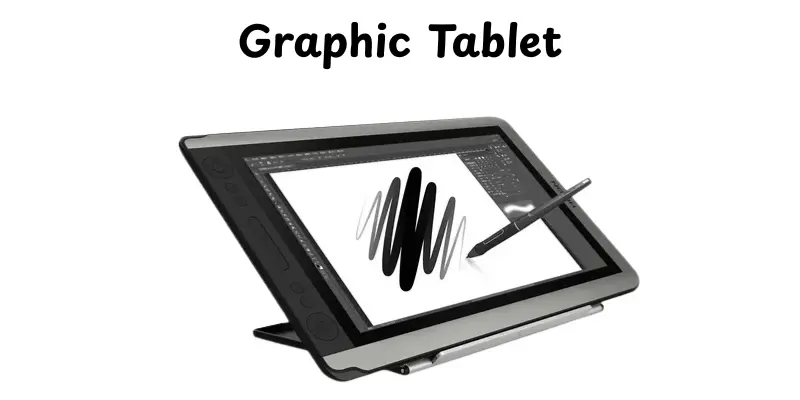
A graphic tablet is an input device that allows you to write or draw on a flat surface with a specific pen. It works with a computer and converts your hand actions into lines and shapes on the screen.The tablet analyzes the way you press the pen, so your strokes look natural. Many artists use it to make clean drawings and smooth designs. Students also use it to take notes or sketch ideas quickly. The pen feels easy to hold and moves just like a real pencil. The tablet gives you better control than a mouse. It helps you give simple digital work with simple motions.
How a Graphic Tablet Works
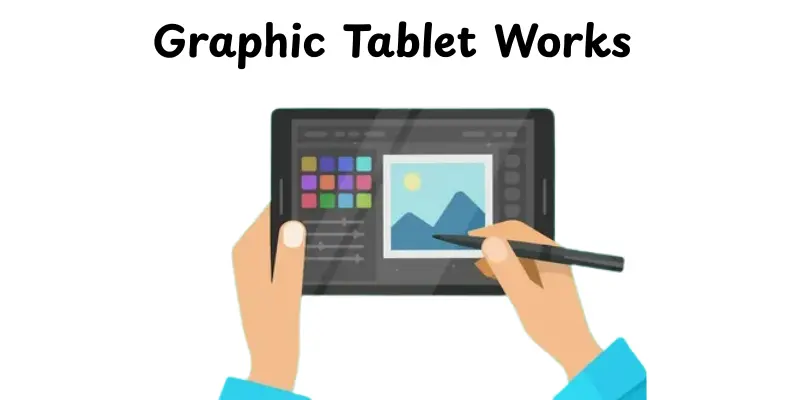
A graphic tablet works like a digital drawing board. You use a special pen to create lines, shapes and notes. The tablet transfers every movement to your computer in real time.
- The pen touches the tablet surface and creates a digital line on your screen.
- The tablet detects how hard you press to change the thickness of each line.
- Tiny sensors inside the tablet track your pen’s direction and speed.
- The tablet sends this information to your computer through a wire or wireless link.
- Your drawing or writing will show quickly on your screen.
Types of Graphic Tablets
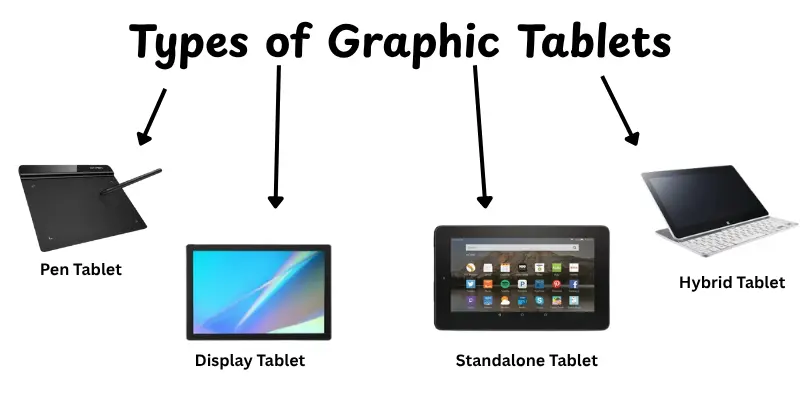
There are a few main types of graphic tablets and each one works in a unique different method. These tablets help people draw, write and design with comfort. Here are the common types in simple words.
- Pen Tablet: A flat tablet that can be connected to a computer and used to sketch while looking at the screen.
- Display Tablet: A tablet with a built-in screen that allows you to sketch directly while looking at your work.
- Standalone Tablet: A tablet that works without a computer and helps you to draw anywhere.
- Hybrid Tablet: A tablet you can use with a computer or on its own for flexible use.
Main Features of a Graphic Tablet
Every graphic tablet provides features that make drawing and writing look simple and natural. These features help beginners and experienced users to work with more power. Here are the main ones, in simple terms.
- Pressure Sensitivity: The tablet detects how light or strongly you press the pen to change line thickness.
- Pen Tilt Support: The pen can be turned like a pencil to produce softer or angled strokes.
- Active Area: This is the main drawing region where the pen works.
- Shortcut Buttons: These buttons help you do quick actions like undo or zoom.
- Screen Quality (for display tablets): A clear and bright screen that shows your lines and colors cleanly.
- Resolution: The tablet collects more details when you move the pen, so your lines look clear.
Uses of Graphic Tablets
Display tablets allow users to draw and design with more control because they can see their work directly on the screen. They make digital tasks appear natural and simple for both beginners and professionals. Here are the main uses in simple terms.
- Digital Art: Artists create and paint with soft lines directly on the screen.
- Graphic Design: Designers create clean logos, layouts and images with more accuracy.
- Photo Editing: Editors make fine changes to pictures using specific pen actions..
- Animation Work: Animators sketch frames and add details with natural hand control.
- 3D Modeling: Creators make and improve models with more touch accuracy..
- Online Teaching: Teachers write, draw and explain lessons clearly to students.
- Note-Taking: Students and workers take short notes on the screen.
Advantages and Disadvantages of Graphic Tablets
In this section, we will look at the pros and cons of a graphic tablet. Knowing both sides helps you decide if it fits your needs.
| Advantages of Graphic Tablets |
|---|
|
| Disadvantages of Graphic Tablets |
|---|
|
How to Choose the Right Graphic Tablet
Choosing the perfect graphic tablet can make your digital work easier and enjoyable. Consider your needs, your budget, and how you want to use it. Here are some easy tips to help you decide:
- Tablet Size: Pick a size that fits your workspace and drawing style.
- Pressure Sensitivity: Higher sensitivity gives easier and more natural lines.
- Display vs Non-Display: Pick if you want to draw directly on the screen or on a different tablet.
- Connection Type: Choose wired or wireless based on simple and portability.
- Budget: Look for a tablet that fits your budget without missing key features.
- Brand and Support: Consider trusted brands like Wacom, Huion, or XP-Pen for reliability.
- Software Compatibility: Make sure the tablet works with your preferred drawing or editing programs.
Basic Setup and How to Use It
Even beginners can quickly and easily set up a graphic tablet. Once it’s completed, you can start drawing, writing or designing right away. Here’s how to get started, step by step:
- Unbox the Tablet: Take out the tablet, pen and any cables or accessories.
- Connect to Your Computer: Use a USB cable or Bluetooth to link the tablet.
- Install Drivers: Download and install the tablet’s driver from the official website.
- Open Drawing Software: Launch a program like Photoshop, Krita or any app you like.
- Test the Pen: Try drawing simple lines and shapes to check sensitivity and accuracy.
- Adjust Settings: Customize pressure, pen buttons and shortcuts for comfort.
- Start Practicing: Begin with basic sketches and gradually explore more detailed work.
Best Software for Graphic Tablets
Choosing the right software can make your graphic tablet much more powerful. Here are some of the top drawing and painting apps you can use, from free options to professional-level ones:
- Krita: A free and open-source application designed for digital painting and 2D animation.
- Autodesk SketchBook: Simple and clean interface, ideal for sketching and concept work.
- MediBang Paint: Lightweight, cloud-based drawing app with good tools for comics and illustration.
- Infinite Painter: Great for both quick sketches and full paintings, works well with stylus input.
- Corel Painter: Powerful tool that mimics real-world media like oil paint, watercolors and more.
- ArtRage: Gives you a realistic painting experience with natural brush and canvas textures.
- Adobe Fresco: Combines vector and raster brushes, made for digital painting on touch or stylus devices.
Tips for Beginners
Starting with a graphic tablet can feel tricky, but a few simple tips make it easier. These tips help you improve faster and enjoy your digital work.
- Start Simple: Practice basic shapes and lines before moving to complex drawings.
- Adjust Pen Settings: Set pressure sensitivity and shortcuts for comfort.
- Use Shortcuts: Learn shortcut keys to save time when drawing or editing.
- Keep Your Hand Relaxed: Don’t grip the pen too strongly to avoid tiredness.
- Practice Daily: Even a few minutes every day improves control and skill.
- Explore Software Tools: Try different brushes, layers and other features to find what works best.
- Be Patient: It takes time to get used to drawing on a tablet instead of paper.
Conclusion
So, in this article, we’ve explained in detail what a graphic tablet is. If you’re just starting up, I recommend a beginner-friendly pen tablet for practicing basic sketching and note-taking. With regular use, you will quickly improve and enjoy digital design. Explore different tools and software to find your style. Don’t wait – try a tablet today and discover how it improves your work.
FAQs
Graphics are pictures, drawings, or images used on computers. They help make websites, games, presentations and designs look better. Graphics can explain ideas clearly and make work more attractive.
We use a graphic tablet to draw, write or design on a computer easily. It gives better control than a mouse and makes digital work like natural. Artists and students use it for accuracy and speed.
Connect the tablet to your computer and install the driver. Open drawing or editing software and use the pen to draw or write. Adjust the pressure and shortcut settings to make it more comfortable.
Graphic tablets are mostly used by artists, designers, students, and educators, but they can also be used by photographers and animators for intricate digital work, and beginners can practice drawing on them.
Yes, it is simple once you’re used to it. Beginners can need a few days of practice, but it feels just like writing with a pen on paper.
A small pen tablet with good pressure sensitivity is good for beginners. It is easy, cheap and covers you basic drawing and writing.
Some tablets need a computer to function, while others work on their own. It depends on the model you select.
Yes, it can be used instead of paper for drawing, taking notes and creating. It is portable and enables for simple modification without wasting sheets.
Yes, teachers can write, draw and explain lessons clearly. Students can follow along easily, making online teaching more enjoyable.



- Be Respectful
- Stay Relevant
- Stay Positive
- True Feedback
- Encourage Discussion
- Avoid Spamming
- No Fake News
- Don't Copy-Paste
- No Personal Attacks
- Be Respectful
- Stay Relevant
- Stay Positive
- True Feedback
- Encourage Discussion
- Avoid Spamming
- No Fake News
- Don't Copy-Paste
- No Personal Attacks
